RouterBar: your router traffic in the Mac menu bar / Router-Traffic in der Menüleiste
Table of Contents
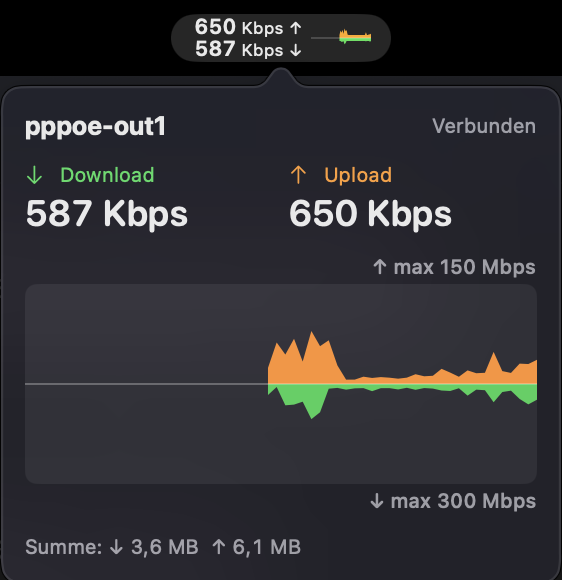
RouterBar shows how busy your internet line really is, right in the menu bar of your Mac. It reads the traffic counters of one interface on your router (or any other network device) via SNMP, so you see the traffic of the whole network, not only of your Mac.
Download
- RouterBar for Apple silicon, DMG — 0,7 MB, 2026-11-29 MD5: 2f83ee50e6d3069b97cdd2d3dfe24f03
Signed with a Developer ID Application certificate and notarized by Apple. Free, MIT license.
Requirements: a Mac with Apple silicon, macOS 14 or later, and a device with SNMP v2c enabled that offers 64-bit interface counters.
What it does
- Upload and download in the menu bar, with an optional small history graph beside or behind the values.
- Click for a larger graph, totals and the connection status.
- Choose the interface from a list, for example your PPPoE uplink.
- Bytes or bits per second, with separate maximum speeds for download and upload.
- Read only: RouterBar never changes anything on your router.
- German and English.
German and English
RouterBar speaks both languages, including the question macOS asks before the app may access your local network. It follows your Mac: if German is your preferred language you get German, otherwise English. To choose differently for this app only, open System Settings → General → Language & Region → Applications, add RouterBar, pick the language and restart the app. Number formats follow your region settings. The screenshot above shows the German interface.
Setup
- Enable SNMP on your router. On MikroTik RouterOS: IP → SNMP. Restrict access to your local network.
- Open the DMG and drag RouterBar to Applications.
- Start it, right-click the icon, choose Settings, enter the router address and community, click Save and load interfaces and pick the interface.
- Allow access to the local network when macOS asks.
SNMP v2c sends the community unencrypted. Use it only inside your own network, and never expose SNMP to the internet.
Contact: routerbar@neumann-edv.de
Deutsch
RouterBar zeigt, wie stark deine Internetleitung wirklich ausgelastet ist, direkt in der Menüleiste deines Macs. Die App liest per SNMP die Traffic-Zähler einer Schnittstelle deines Routers (oder eines anderen Netzwerkgeräts). Du siehst also den Verkehr des ganzen Netzes, nicht nur den deines Macs.
Download
- RouterBar für Apple Silicon, DMG — 0,7 MB, 2026-11-29 MD5: 2f83ee50e6d3069b97cdd2d3dfe24f03
Mit einem Developer-ID-Zertifikat signiert und von Apple notarisiert. Kostenlos, MIT-Lizenz.
Voraussetzungen: ein Mac mit Apple Silicon, macOS 14 oder neuer, und ein Gerät mit aktiviertem SNMP v2c, das 64-Bit-Zähler für seine Schnittstellen liefert.
Funktionen
- Upload und Download in der Menüleiste, auf Wunsch mit kleinem Verlaufsdiagramm daneben oder dahinter.
- Ein Klick zeigt ein größeres Diagramm, die Summen und den Verbindungsstatus.
- Die Schnittstelle wählst du aus einer Liste, zum Beispiel deinen PPPoE-Zugang.
- Byte oder Bit pro Sekunde, mit getrennten Maximalgeschwindigkeiten für Download und Upload.
- Nur lesend: RouterBar ändert nichts an deinem Router.
Deutsch und Englisch
RouterBar spricht beide Sprachen, auch bei der Frage von macOS, ob die App auf das lokale Netz zugreifen darf. Die App richtet sich nach deinem Mac: Ist Deutsch deine bevorzugte Sprache, erscheint sie auf Deutsch, sonst auf Englisch. Nur für diese App stellst du die Sprache unter Systemeinstellungen → Allgemein → Sprache & Region im Abschnitt für Programme um: RouterBar hinzufügen, Sprache wählen und die App neu starten. Das Zahlenformat folgt deinen Regionseinstellungen.
Einrichten
- SNMP am Router einschalten. Bei MikroTik RouterOS: IP → SNMP. Den Zugriff auf dein lokales Netz beschränken.
- Das DMG öffnen und RouterBar auf Applications (Programme) ziehen.
- Starten, Rechtsklick auf das Symbol, Einstellungen wählen, Adresse und Community des Routers eintragen, Speichern und Schnittstellen laden anklicken und die Schnittstelle wählen.
- Den Zugriff auf das lokale Netz erlauben, wenn macOS fragt.
SNMP v2c überträgt die Community unverschlüsselt. Nutze es nur im eigenen Netz und gib SNMP nie zum Internet hin frei.
Kontakt: routerbar@neumann-edv.de