CuteTmux: tmux, without learning tmux
Table of Contents
Most terminal apps make you choose: either you get a nice-looking, native experience for your local shell, or you get tmux — powerful, persistent, but bolted onto a terminal that was never designed for it, complete with its own prefix key, its own status bar, and its own copy mode you have to relearn.
CuteTmux is a native Mac app that gets rid of that trade-off. It talks to tmux on your servers in control mode — a mode where tmux stops drawing anything itself and instead just reports what’s happening (a new pane, a resized window, a line of output) over a plain text protocol. CuteTmux takes that feed and renders it as ordinary tabs and splits, using the same shortcuts, the same mouse selection, and the same scrollback you already know from any other terminal. You never see tmux’s prefix key. You never type a tmux command. You just get a session that keeps running on the server after you close the window, lose the network, or put the laptop to sleep — and picks up exactly where you left off next time.
Download
- CuteTmux for Apple silicon (M1 and later) — 3,0 MB, 2026-09-29
MD5:
38b3b981d5a85b3c7ccdc2f688ea6618 - CuteTmux for Intel Macs — 3,2 MB, 2026-09-29
MD5:
c942b07b8cfc6b8a0b75c0c39d65654a
Both builds are signed with a Developer ID Application certificate and notarized by Apple.
What it actually does
- Local shell, SSH, and tmux in one app. Open a plain local terminal, ssh into a server, or connect to a server’s tmux session — they all look and behave the same way.
- tmux windows become tabs, tmux panes become splits. Create a new tmux window with the same shortcut you’d use for a new local tab. Split a pane the same way you’d split a local one. Behind the scenes, CuteTmux is sending real tmux control-mode commands; on screen, it’s just a tab bar and a drag-to-resize divider.
- Sessions never die with the window. Because the actual session lives on the server, closing a CuteTmux window just disconnects the client — the session, its windows, and everything running inside them keep going. Reconnect later and it’s all still there.
- A real terminal engine. Full-screen programs —
vim,btop,less, anything that repaints the screen — work correctly, with 256-color and truecolor support, because CuteTmux ships its own VT engine rather than a stripped-down text preview. - A server list, not a list of connection strings. Press ⌘S to see your servers, each with its own
accent color so you always know which one you’re looking at. Servers from your
~/.ssh/configshow up automatically, read-only; CuteTmux never modifies your ssh configuration. - It also notices when you start tmux yourself. Type
tmuxby hand in a plain local shell tab, and CuteTmux offers to upgrade that window to the same tabs/panes/sessions integration a server gets — no need to have connected “the CuteTmux way” from the start. A pinned entry in the server list does the same on demand: attach to whatever local tmux session is already running, or start one if none is. - Finder integration. Right-click a folder → Services → New CuteTmux at Folder opens a window there directly, the same way Terminal.app’s own folder service works — and New CuteTmux Tab at Folder adds a tab to the window you already have open instead.
The look
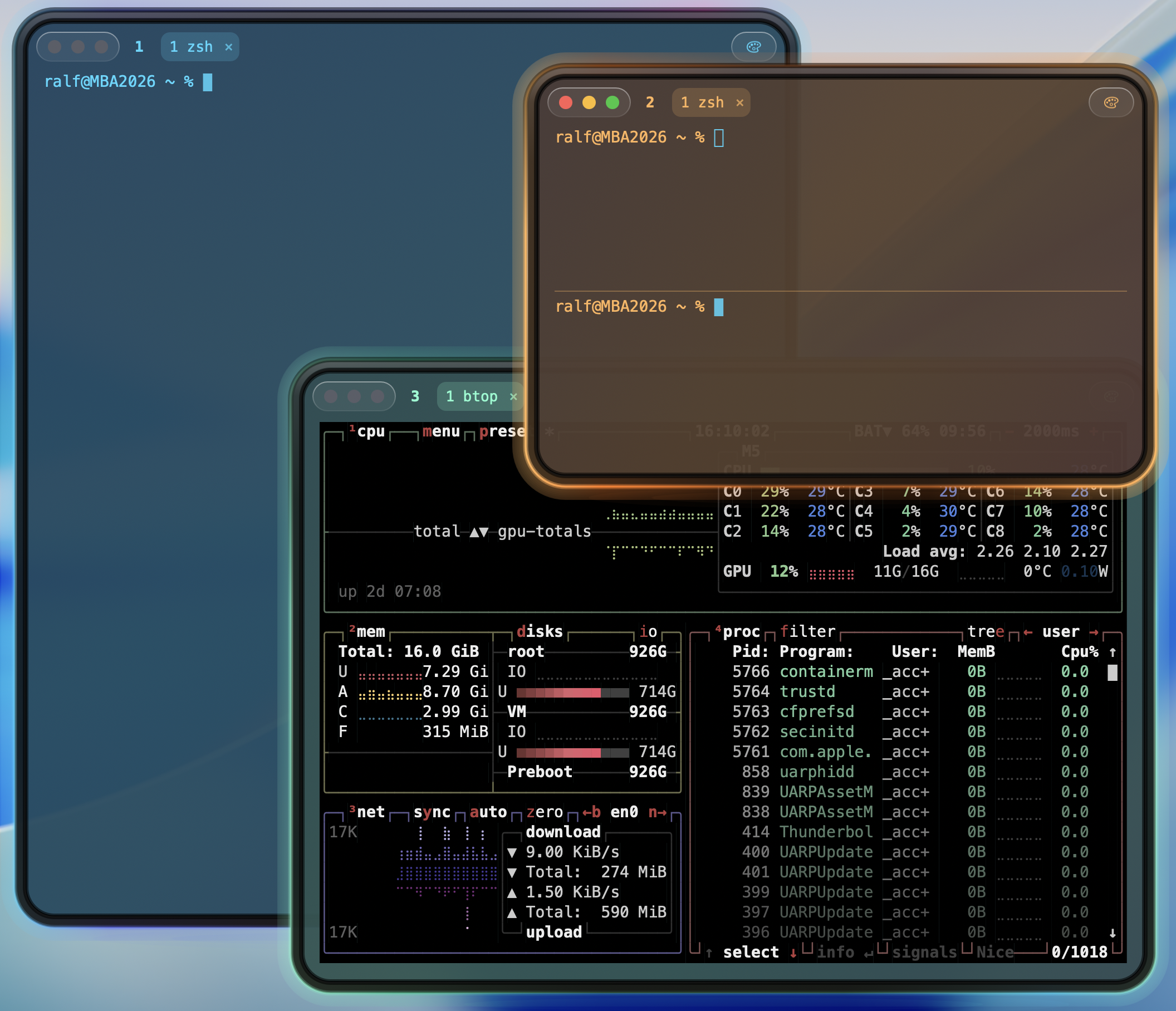
CuteTmux is a borderless glass window with a soft neon rim in one of eight accent colors — pick a different color per window so a glance tells you which server (or which local project) you’re looking at, even across a dozen open windows. The rim color, the window’s background tint, and its transparency are all yours to set per window, right-click on the color pill.
Why control mode, specifically
Plenty of terminal apps let you run tmux inside them — that’s not new. What’s different here is that
CuteTmux never shows you tmux’s own interface at all. Control mode (tmux -CC, the same mechanism
iTerm2 uses) turns tmux into a small server and CuteTmux into its client: tmux reports state changes as
they happen, CuteTmux answers with normal window/pane commands. The result is one interface, one set of
muscle memory, and a tmux session doing what tmux is actually good at — surviving disconnects — without
asking you to learn tmux to get there.
One build for Apple silicon, one for Intel
CuteTmux comes in two native builds: one for Apple silicon Macs (M1 and later) and one for Intel Macs. Each is compiled for exactly one processor architecture rather than shipped as a combined “universal” app, so both run natively — no Rosetta translation layer involved, which matters because Apple is removing Rosetta in macOS 28. Pick the download that matches your Mac; both builds are identical in features and version, and both are signed and notarized in the same way.
Written in Swift, nothing borrowed
CuteTmux is written entirely in Swift and AppKit — no Electron, no cross-platform UI framework standing in for what macOS already provides.